
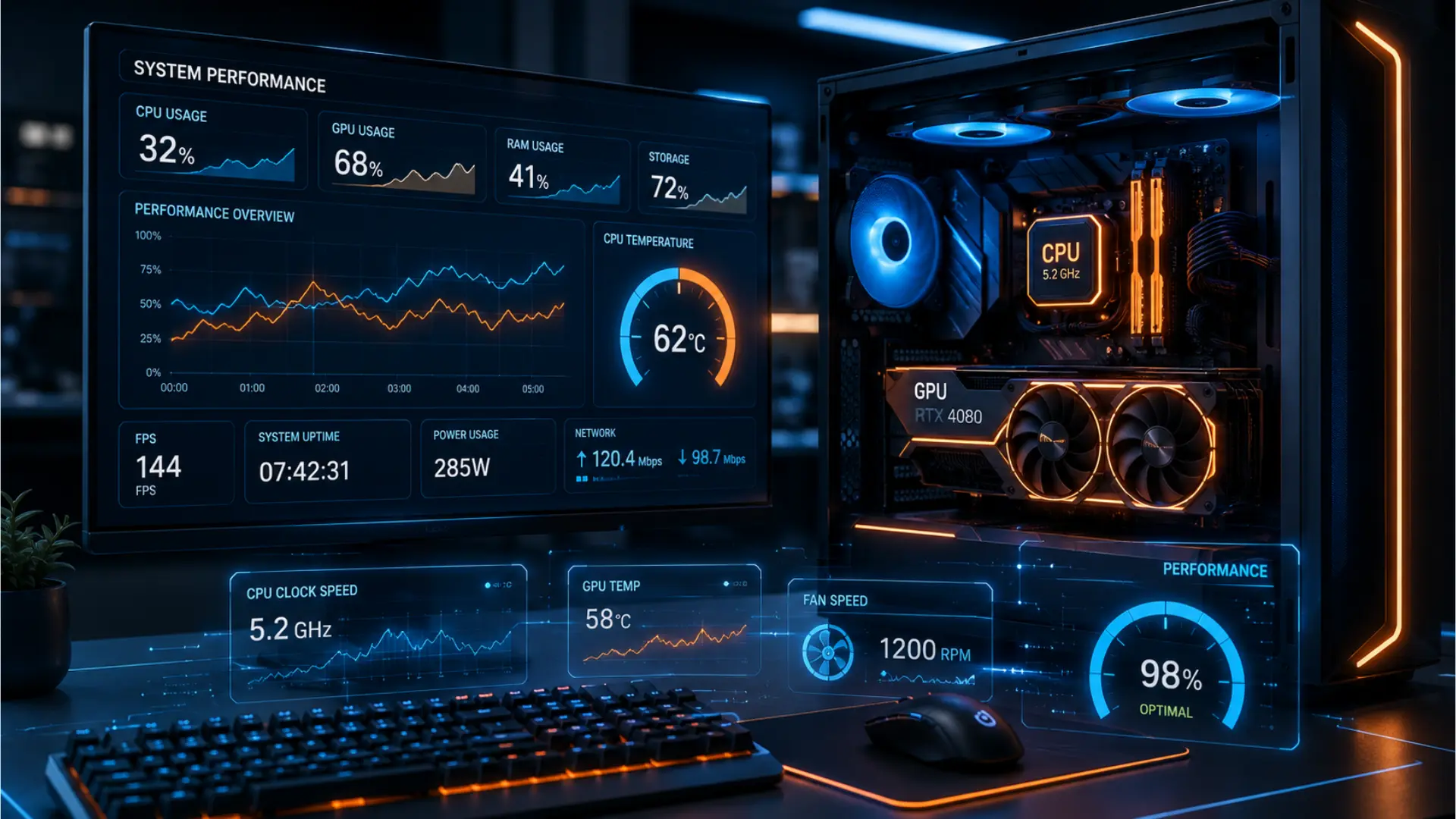
5 Powerful Ways a Bottleneck Calculator Can Fix PC Lag
Every PC gamer eventually asks the same question: Is my CPU holding back my graphics card, or is it the other way around? That question is exactly what a bottleneck calculator is built to answer.
If you’ve ever bought a new GPU and felt underwhelmed by the FPS gains, or wondered why your processor sits at 40% usage while your game still stutters, you’re dealing with a bottleneck. This guide explains what a bottleneck actually is, how a bottleneck calculator estimates one, how to read the results correctly, and where these tools fall short, something most bottleneck calculator sites don’t tell you.
What Is a PC Bottleneck?
A bottleneck happens when one part of your system, usually the CPU or GPU, limits how fast the rest of the system can work. The name comes from the neck of a bottle: no matter how much liquid you have, only so much can pass through the narrow part at once.
In a gaming PC, your CPU prepares data for game logic, physics, AI, and draw calls and hands it to the GPU, which renders the actual image. If either component can’t keep pace with the other, you lose the performance you’re paying for. There are two main types:
CPU bottleneck:
Your processor can’t feed instructions to the GPU fast enough. The GPU sits underutilized while the CPU works at or near 100%. This usually shows up as lower-than-expected FPS, frame stuttering, and inconsistent frame times, even though your graphics card has more to give.
GPU bottleneck:
Your graphics card is maxed out rendering frames while the CPU has spare capacity. This is actually normal and often desirable; it means your GPU is doing the heavy lifting it was bought to do.
A small GPU-side bottleneck is nothing to worry about. A heavy CPU bottleneck is the one worth fixing, since it wastes the GPU performance you already paid for.
What Is a Bottleneck Calculator?
A bottleneck calculator is a free online tool that estimates the performance relationship between your CPU and GPU. You typically select your processor, graphics card, resolution, and sometimes your RAM, and the tool returns a percentage estimate, for example, “12% CPU bottleneck”, along with a rough sense of expected FPS.
These tools are popular because manually comparing PCs across dozens of CPU and GPU combinations is time-consuming. A calculator gives you a fast, directional answer to questions like “will it run?” before you spend money on new hardware.
It’s important to set expectations correctly, though. A bottleneck calculator estimate is not a lab measurement. It’s a modeled approximation built from aggregated benchmark data, general architecture trends, and averaged workloads. Real-world results vary by game, driver version, in-game settings, and even your specific motherboard and RAM configuration.
How Does a Bottleneck Calculator Work?
Most bottleneck calculators follow a similar process behind the scenes, even if the interface looks different from one site to another.
Component Performance Scoring
Each CPU and GPU in the database is assigned a relative performance score. Gamers often ask, “How do I benchmark my pc?” These tools aggregate standard pc benchmark data across synthetic tests and real gaming suites to assign base performance values.
Resolution and Workload Weighting
Resolution changes which component matters more. At 1080p, the CPU typically has a bigger influence on FPS because the GPU isn’t working as hard per frame. At 4K, the GPU almost always becomes the dominant factor, since rendering far more pixels shifts the workload heavily toward the graphics card. A good calculator adjusts its estimate based on the resolution you select.
Ratio Comparison
The tool compares the CPU’s and GPU’s relative scores, factoring in the resolution weighting, and expresses the gap as a percentage. A result like “8% GPU bottleneck” suggests your CPU has a small performance edge over your GPU at that resolution, not a serious problem.
Output and Recommendation
Finally, the calculator displays the result, often with a general recommendation, such as suggesting a CPU or GPU upgrade if the imbalance is large.
Multi-language bottleneck calculators follow the same logic but present the interface and explanations in different languages, which matters since PC building and hardware upgrades are a global hobby, not a US-only one.
How To Use a Bottleneck Calculator
- Select your CPU; the exact model, generation, and SKU matter more than most people realize. An Intel Core i5 from two generations ago can behave very differently from a current one, even if they share the same name.
- Select your GPU; pick your exact graphics card, including the VRAM variant if the tool asks (for example, an 8GB versus 16GB version of the same card can behave differently in memory-hungry games).
- Choose your resolution: 1080p, 1440p, or 4K. Each shifts the balance between CPU and GPU load.
- Review the result, look at the bottleneck percentage, and see which component it favors.
- Cross-check with real benchmarks; search for real gaming benchmarks of your specific CPU and GPU pairing on sites like Tom’s Hardware or TechPowerUp before making a purchase decision based on the calculator alone.
Practical Example
Say you’re pairing an AMD Ryzen 7 9800X3D with an NVIDIA RTX 5070 Ti at 1440p. A bottleneck calculator would likely show a small GPU-side result, since the 9800X3D is currently one of the fastest gaming CPUs available and shouldn’t meaningfully hold back a card in that performance tier. Now swap in an older quad-core CPU with the same GPU, and the tool would likely flag a significant CPU bottleneck, since the processor can’t feed the graphics card fast enough to use its full potential.
What a Bottleneck Calculator Can’t Tell You
This is where most competing tools stop short, and it’s worth being direct about the limitations.
- It doesn’t account for your specific games. A CPU-heavy strategy game like a large-scale 4X title behaves very differently from a GPU-heavy, ray-traced action game. Averaged scores can’t capture that.
- It doesn’t know your RAM speed or capacity. Slow or insufficient RAM can create a bottleneck unrelated to your CPU or GPU model.
- It doesn’t account for storage speed. An older SATA SSD or HDD can cause stutter from asset streaming, which looks like a CPU or GPU issue but isn’t.
- It doesn’t know your settings. Ray tracing, upscaling technologies like DLSS or FSR, and frame generation dramatically shift the CPU/GPU balance compared to native rendering.
- It doesn’t measure thermal throttling or power limits. A CPU or GPU running hot, or capped by a weak power supply, can underperform its rated benchmark score.
- Drivers and background software matter. Outdated GPU drivers, overlays, and background apps can create a perceived bottleneck that a calculator has no way to detect.
Think of a bottleneck calculator as a starting point for research, not a final verdict.
Common Mistakes When Interpreting Bottleneck Results
- Chasing a 0% bottleneck. A perfectly balanced system doesn’t exist in practice, and it isn’t necessary. Some GPU-side bottleneck is normal and healthy.
- Panicking over a small percentage. A result under 10% rarely translates into a noticeable real-world difference.
- Ignoring resolution. If you play mostly at 4K, a CPU upgrade will usually deliver a smaller FPS gain than a GPU upgrade, and vice versa at 1080p.
- Assuming brand or core count guarantees performance. Architecture, cache size, clock speed, and game optimization all matter more than raw core count or brand loyalty.
- Using outdated benchmark data. Hardware releases move fast. A calculator that hasn’t been updated for current-generation GPUs like the RTX 50-series or AMD’s RX 9000-series, or current CPUs like the Ryzen 9800X3D and Intel Core Ultra 200 series, will give misleading results.
How To Actually Confirm a Bottleneck on Your PC
If you want ground truth rather than an estimate, monitoring software gives you real data while gaming:
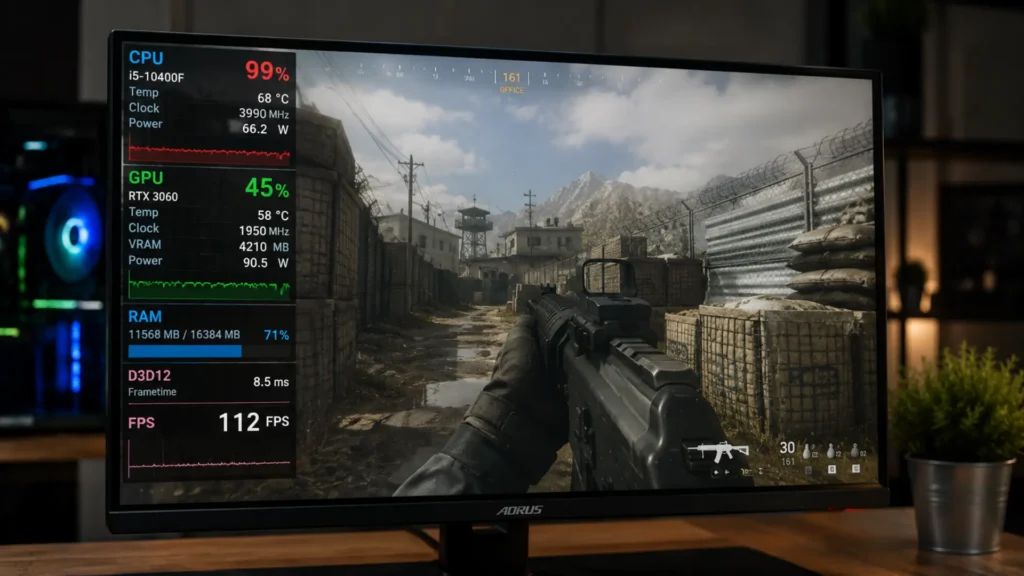
- Install a monitoring overlay such as MSI Afterburner (with RivaTuner Statistics Server) or the built-in Windows Task Manager performance tab.
- Launch the game you’re concerned about and check CPU usage (across all cores) and GPU usage simultaneously.
- If your CPU sits near 100% while your GPU usage is noticeably lower, that’s a CPU bottleneck.
- If your GPU sits near 100% while your CPU has headroom, that’s a normal GPU-bound scenario.
- Repeat the test at different resolutions and settings to see how the balance shifts.
This method is more accurate than any calculator because it reflects your exact hardware, your exact game, and your exact settings, not an aggregated average. If you encounter crashes or performance issues while running test games, check our DirectX 11 PC Troubleshooting guide to resolve any underlying software glitches first.
Fixing a CPU or GPU Bottleneck
If you confirm a real, meaningful bottleneck, here are the practical options:
For a CPU bottleneck
- Lower CPU-intensive settings, such as draw distance, NPC density, or physics quality.
- Close background applications and browser tabs.
- Update your motherboard’s BIOS and chipset drivers.
- Consider a CPU upgrade if you’re several generations behind current hardware.
For a GPU bottleneck (if it’s more severe than you want)
- Lower resolution or graphics settings like shadows, ray tracing, and anti-aliasing.
- Enable upscaling technology such as DLSS or FSR to reduce the GPU’s rendering workload.
- Consider a GPU upgrade if you’re targeting a higher resolution or refresh rate than your card can handle.
Frequently Asked Questions
What is a good bottleneck percentage?
Under 10% is generally considered negligible for most gamers. Between 10% and 20% may be noticeable in demanding titles. Above 20%, especially on the CPU side, is worth addressing.
Is a GPU bottleneck bad?
Not usually. A GPU running near full capacity means it’s being used as intended. It only becomes a problem if your FPS falls below your target and you have no headroom left in settings.
Can RAM cause a bottleneck?
Yes. Insufficient RAM capacity or slow RAM speed can cause stuttering and frame drops that a CPU/GPU-only calculator won’t detect.
Does resolution affect bottleneck results?
Yes, significantly. Higher resolutions shift the workload toward the GPU, while lower resolutions put more pressure on the CPU.
Are bottleneck calculators accurate?
They’re useful for a general estimate but not precise. Real benchmarks for your specific CPU, GPU, and game combination are more reliable than any calculator’s output.
Do bottleneck calculators account for laptops?
Most are built around desktop components and desktop-level power and thermal headroom. Laptop performance can vary due to power limits and thermal throttling, so results may be less accurate for mobile hardware.
Conclusion
A bottleneck calculator is a useful first step for understanding how your CPU and GPU work together, especially before buying new hardware. It won’t replace real benchmarks or in-game monitoring, but it gives you a quick, directional read on where your system’s balance sits. Use it as a guide, confirm with real-world testing when it matters, and focus your upgrade budget on the component that is actually holding your PC back.