

DirectX 11 PC Troubleshooting: 4 Essential Steps to Fix Game Errors
If a game refuses to launch, throws a missing DLL error, or runs worse than it should, the cause often traces back to one of three things: your CPU, your RAM, or DirectX 11. These three pieces work together every time you load a game, and understanding how they interact makes it much easier to fix performance problems rather than guess at settings.
This guide breaks down what DirectX 11 is, how it interacts with your PC’s hardware, and how your CPU and RAM affect the performance you get from it. Along the way, we’ll cover the most common errors people run into, how to check and install what you need, and where DirectX 11 still matters in 2026, even with DirectX 12 as the current standard.
What Is DirectX 11?
DirectX 11 is a graphics API, a set of tools created by Microsoft, that lets games and other software communicate with your CPU, GPU, and other hardware without developers having to write custom code for every possible hardware combination.
Released in 2009 alongside Windows 7, DirectX 11 became the dominant standard for PC gaming for most of the following decade. It’s a high-level API, meaning it handles a lot of the low-level hardware communication automatically. That makes it easier for developers to build stable, predictable games, which is a big reason so many titles from the 2010s through today still run on it.
DirectX 12, released in 2015, is the newer low-level API that gives developers more direct control over the GPU and CPU cores. But DirectX 11 hasn’t disappeared; it’s still actively used, still built into Windows, and still required by many games, including several from Bethesda: Skyrim and Fallout 4.
How DirectX Fits Into Your Gaming PC
Think of DirectX as a translator sitting between the game and your hardware. When a game needs to draw a frame, play audio, or read a controller input, it doesn’t talk to your CPU and GPU directly; it talks to DirectX, which then relays those instructions to your hardware in a format it understands. This matters for performance in three specific ways:
CPU and DirectX 11
DirectX 11 primarily uses a single CPU thread to prepare rendering instructions for the GPU, with only limited support for spreading that work across multiple cores. This means a game running on DirectX 11 tends to lean heavily on your CPU’s single-core performance rather than its total core count.
That’s part of why an older quad-core CPU can struggle in DirectX 11 titles even if it has decent clock speeds; the game can’t hand off enough work to the other cores. If you’re unsure whether your processor is holding back your graphics card, using a bottleneck calculator can help identify hardware limits causing PC lag. Upgrade options vary across sockets: while newer platforms exist, budget-focused builders often look for the best AM4 CPU for gaming (such as the Ryzen 7 5700X3D) to maximize single-thread and cache throughput. Upgrading older AM4 CPUs allows players to maximize system lifespan without replacing the entire motherboard. If you are shopping for components online, users frequently ask if Newegg is legit; yes, provided you order directly from authorized storefronts or main retail channels rather than unverified third-party sellers. Furthermore, when deciding on hardware upgrades for current titles, enthusiasts often look at the best gaming CPU 2026 benchmarks to see which processors maintain high single-thread frame rates under demanding graphics workloads.
RAM and DirectX 11
RAM acts as short-term storage for the assets DirectX needs ready to go: textures, models, and level data. If you don’t have enough RAM, or your RAM is too slow, DirectX has to wait on data instead of feeding it straight to the GPU. That shows up as stuttering, texture pop-in, or long loading pauses, even on a system with a strong CPU and GPU.
When selecting the best RAM for gaming, 16GB is considered the realistic minimum for modern titles, and 32GB in a dual-channel configuration is increasingly common advice for smoother performance in newer, more demanding titles. Dual-channel configuration (two matched sticks instead of one) also matters, since it roughly doubles the memory bandwidth available to your CPU and GPU.
GPU and DirectX 11
Your graphics card still does the actual rendering; DirectX tells it what to draw and how to draw it. A GPU driver needs to properly support the DirectX version a game uses. Nvidia, AMD, and Intel all release regular driver updates that improve DirectX compatibility and performance, which is why keeping graphics drivers up to date is one of the simplest ways to avoid DirectX-related crashes.
DirectX 11 vs. DirectX 12
People often assume DirectX 12 is a straight upgrade, but the reality is more nuanced.
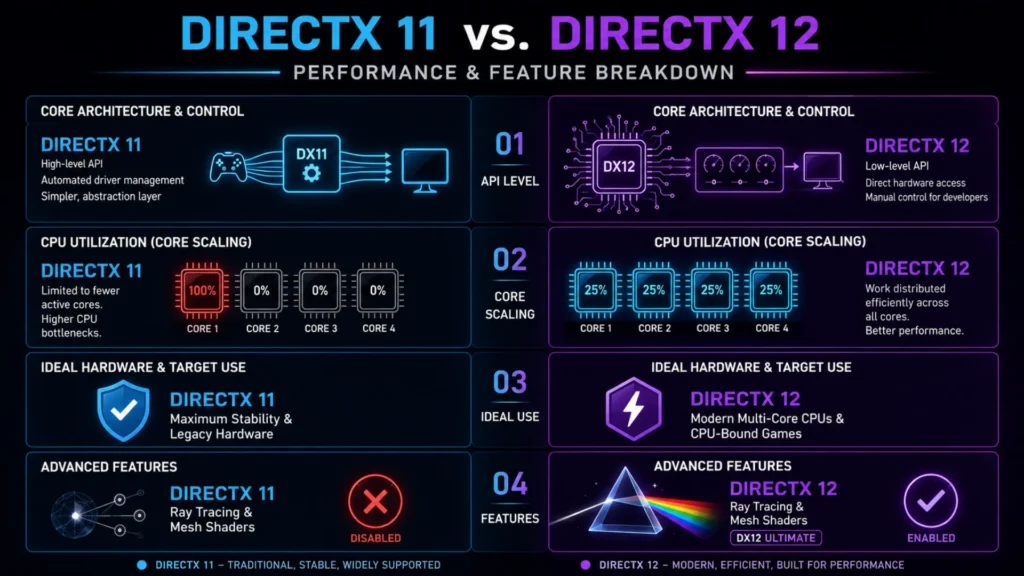
When comparing DirectX 11 vs 12, people often assume DirectX 12 is a straight upgrade, but the reality is more nuanced. Legacy DX11 titles rely heavily on single-thread efficiency, whereas DirectX 12 spreads rendering workloads across multiple CPU cores. But GPU-bound games, where the graphics card is already the limiting factor, often show little difference between the two, and a poorly implemented DirectX 12 mode can actually perform worse or introduce stutter that isn’t present on DirectX 11.
That’s why some studios still ship DirectX 11 as the default or as a fallback option, and why plenty of PC gaming forums debate which mode to pick on a game-by-game basis rather than assuming newer is always better.
How to Check Your DirectX Version
- You don’t need to guess; Windows includes a built-in diagnostic tool for this.
- Press “Windows key + R” to open the Run dialog.
- Type “dxdiag” and press Enter.
- On the “System” tab, look for the “DirectX Version” line.
- For GPU-specific details, click the “Display” tab and check the “Feature Level” or “DDI Version”.
That last step matters more than people realize. On Windows 10 and 11, dxdiag will almost always report “DirectX 12” on the System tab, because DirectX 12 is built into the operating system. But your graphics card might only support an older feature level, like 11_0 or 11_1. A game asking for “DirectX 12” really means it needs a specific feature level your GPU may or may not have; the Windows version alone doesn’t guarantee it.
How to Install or Update DirectX
This trips up a lot of PC gamers because DirectX isn’t installed the way it used to be.
On Windows 10 and 11:
DirectX 12 (which includes DirectX 11 compatibility) comes built into the operating system. You update it through **Windows Update**, not a standalone installer. There is no modern “DirectX 11 setup.exe” to download and run for a current Windows install.
For older games that need legacy DirectX 9 components:
Some classic titles still call for DirectX 9-era DLL files that aren’t included by default. For these, Microsoft provides the “DirectX End-User Runtime Web Installer”, a small, official package that adds the missing legacy files without changing your core DirectX version.
If you’re troubleshooting a specific error, a few quick checks usually resolve it:
- Run “Windows Update” and install any pending updates.
- Update your “GPU drivers” directly from NVIDIA, AMD, or Intel.
- Run the “DirectX End-User Runtime Web Installer” from Microsoft’s official site if a game specifically asks for it.
- Run “sfc /scannow” in an elevated Command Prompt if you suspect corrupted system files.
Avoid downloading DirectX installers from random third-party sites. Since DirectX is built into Windows, most “DirectX download” tools you’ll find outside of Microsoft are, at best, unnecessary, and at worst, bundled with unwanted software.
Common DirectX 11 Errors and What Causes Them
“The program can’t start because d3dx9_43.dll is missing” this usually means the game needs an older DirectX 9 component that isn’t installed. Running the DirectX End-User Runtime Web Installer typically fixes it.
Game crashes immediately after the loading screen, often a driver issue rather than a DirectX issue. Updating or rolling back your GPU driver resolves this more often than reinstalling DirectX.
“DirectX encountered an unrecoverable error” is common in older Bethesda titles like Skyrim and Fallout 4. This is frequently tied to mods, outdated drivers, or a corrupted game file rather than DirectX itself.
Stuttering that occurs only in certain areas is usually a RAM or VRAM issue, not a DirectX issue. If usage of either climbs close to its limit in those areas, that’s your answer.
Diagnosing a DirectX 11 Performance Problem
Say a game is stuttering badly, and you’re not sure whether it’s DirectX, your CPU, or your RAM.
- Open Task Manager and watch CPU and memory usage while the stutter happens.
- If one CPU core spikes to 100% while others stay idle, that points to a DirectX 11 single-thread limitation rather than a hardware failure.
- If total RAM usage is near capacity, the stutter is more likely a memory bottleneck; closing background apps or adding RAM will help more than any DirectX fix.
- If the game offers a DirectX 12 mode, try switching to it and repeating the test. An improvement suggests your original bottleneck was CPU thread distribution, which DirectX 12 handles differently.
This kind of testing tells you where to actually spend money or effort, instead of reinstalling DirectX repeatedly for a problem it isn’t causing.
Common Mistakes to Avoid
- Assuming DirectX 12 is always better; it depends entirely on the game’s implementation and whether your system is CPU-bound or GPU-bound.
- Downloading DirectX or performance utilities from unofficial sources. Gamers also ask if Opera GX is safe when looking for performance-oriented browsers; while official software from reputable developers is safe, downloading from unverified third-party mirrors can expose systems to bloatware or security risks.
- Confusing DirectX version with feature level. dxdiag showing “DirectX 12” doesn’t mean your GPU supports every DirectX 12 feature.
- Blaming DirectX for driver problems: most crashes blamed on DirectX are actually due to outdated or corrupted graphics drivers.
- Ignoring RAM speed and channel configuration, two matched RAM sticks in dual-channel mode noticeably outperform a single stick of the same total capacity.
Frequently Asked Questions
Do I need to install DirectX 11 manually on Windows 11?
No. DirectX 12, which includes DirectX 11 compatibility, is built into Windows 11 and updates through Windows Update. You only need the separate DirectX End-User Runtime installer for older games that require legacy DirectX 9 files.
Why do some games still use DirectX 11 instead of DirectX 12?
DirectX 11 is easier to develop for and tends to deliver more consistent performance on a wider range of hardware. Some studios keep it as the default, or offer it as a fallback, especially for games built on older engines.
Does more RAM improve DirectX performance?
Indirectly, yes. RAM feeds the data DirectX needs to hand off to your GPU. Insufficient or slow RAM causes stutter and pop-in that can look like a DirectX or GPU problem but is really a memory bottleneck.
Is DirectX 12 always faster than DirectX 11?
Not always. DirectX 12 tends to help most with CPU-bound games when implemented well. In GPU-bound games or poorly optimized DirectX 12 modes, DirectX 11 can perform just as well, or better.
How do I know which DirectX feature level my GPU supports?
Open dxdiag, click the Display tab, and check the Feature Level or DDI Version field. This tells you what your graphics card can actually run, regardless of what DirectX version Windows reports.
Why does a game say it requires DirectX 11 if I already have DirectX 12?
DirectX 12 is backward compatible with DirectX 11, so this isn’t usually a problem. The message typically reflects the minimum API the game was built against.
Conclusion
DirectX 11 is still a core part of PC gaming, even years after DirectX 12 became the modern standard. Your CPU handles the instructions DirectX needs to prepare, your RAM keeps the right data ready, and your GPU renders what DirectX tells it to. When something goes wrong, understanding this chain instead of defaulting to blaming DirectX is what actually gets you to a fix, whether that means a driver update, a RAM upgrade, or simply switching which DirectX mode a game uses.